
Bulk Upload - Upload Multiple Files with Physics

Save time with Bulk Upload in Textura. Upload multiple files with physics at once, review them together, and keep your workflow moving.
Bulk Upload in Textura lets you upload several files with physics at the same time, making the process faster and easier to manage from one place.
From the main upload dropdown menu, choose "Create materials in bulk".
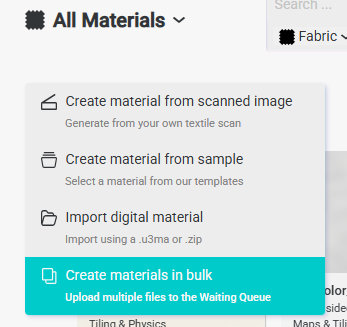
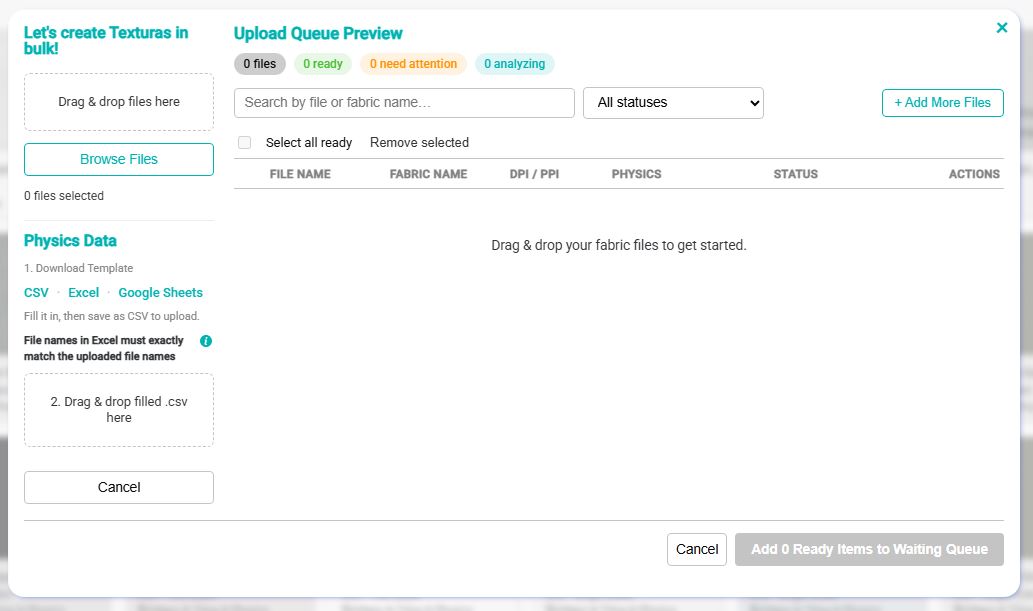
A pop-up window will open, allowing you to select multiple files from your local folders.
 \
\
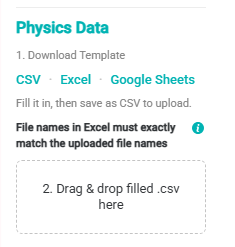
On the left sidebar, you can download the template or open it in Google Sheets to enter the physics data.

The template is designed to organize fabric information and physics data for Bulk Upload. Enter one fabric per row and complete the relevant fields, including Fabric Name, Structure, Type, Weight, Thickness, Tiling Requirement, DPI, and Composition.
For fabric composition, enter each fiber separately together with its corresponding percentage. Make sure the information matches the files you plan to upload so Textura can correctly associate the data with each material.
Once you are ready with all the information needed, download or save the file as a CSV.
Drag and drop the CSV file, or upload it directly into the designated area in the bottom-left sidebar.
Make sure each fabric scan file name exactly matches the corresponding Fabric Name in the CSV file.
Textura uses the file name to match each uploaded scan with its physics data. When the names match, the physics data is automatically assigned to the fabric and a green checkmark appears in the Physics column.
If the names do not match exactly, Textura cannot link the physics data to the scan. The file will be marked No Physics Data, and the unmatched CSV row will be indicated separately. The fabric can still be uploaded, but it will be created without physics data.
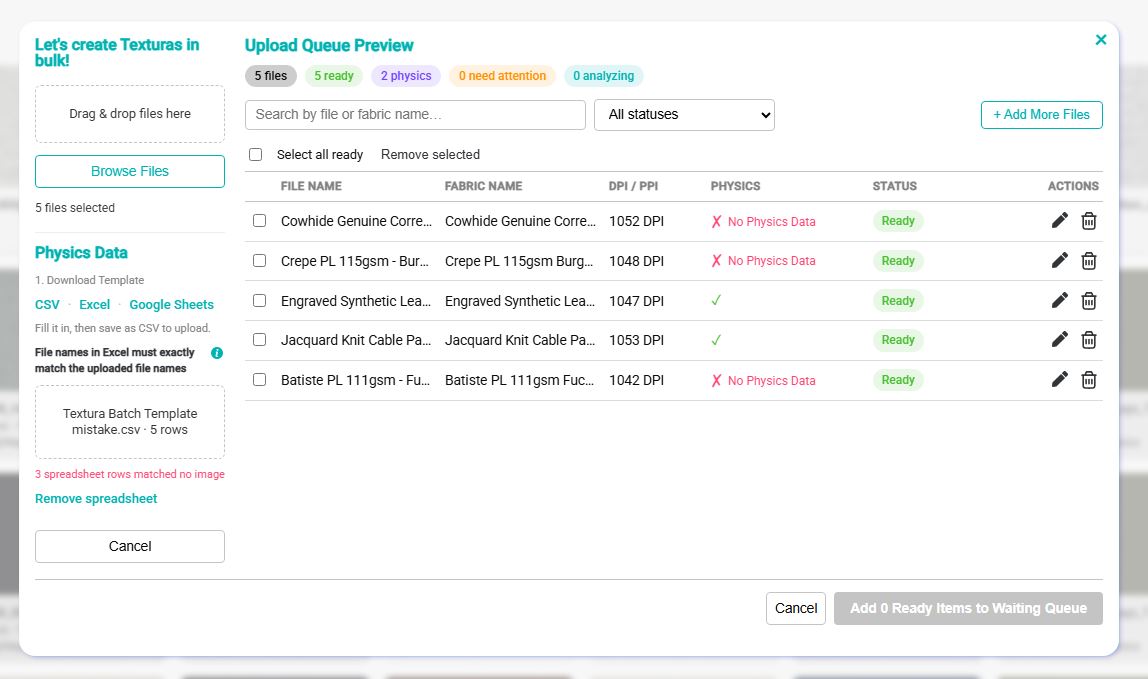
The status indicators at the top of the Upload Queue Preview provide a quick summary of your upload.
They show the total number of files, how many are Ready, how many have Physics, how many Need Attention, and how many are still Analyzing.
If there is a problem, such as missing or unmatched physics data, the counters immediately reflect it. For example, if only 2 physics are detected for 5 uploaded files, this indicates that some files were not matched with physics data and should be reviewed before continuing.
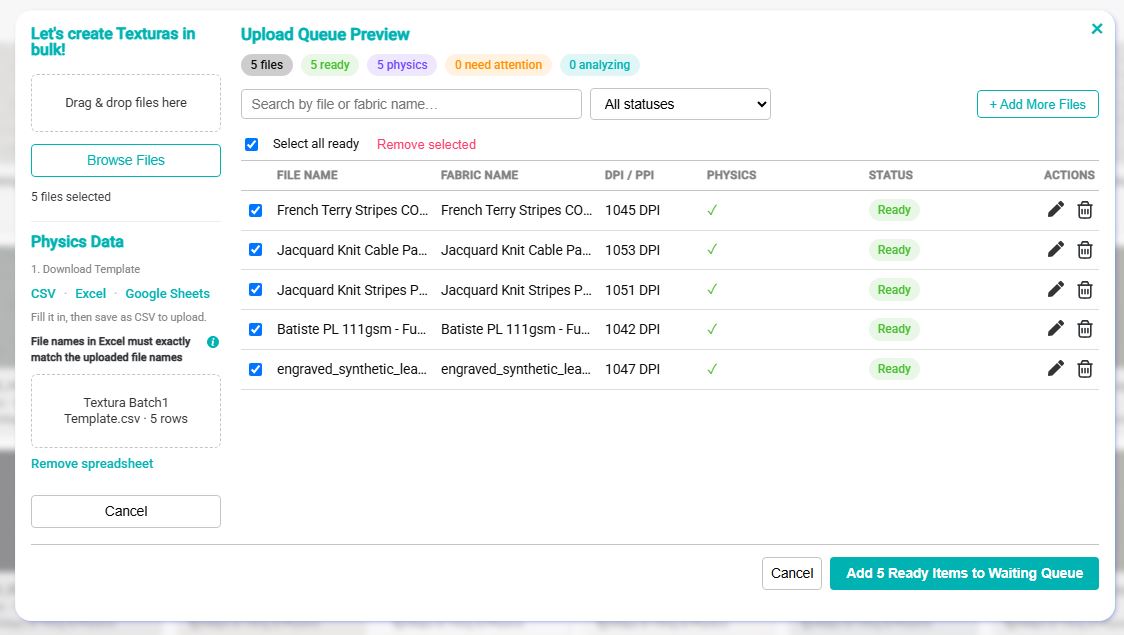
Add a checkmark next to each file you want to upload. You can select files individually or use Select all ready to choose all files that are ready.
The number of selected files is reflected in the Add Ready Items to Waiting Queue button. Only the selected files will be added to the waiting queue.
Files uploaded with physics will first generate the physics data only and will then appear in the Material Review tab.
If you also want to generate the material maps, make sure to click Generate Maps before approving the fabric.
Files uploaded without physics data will be added automatically to the Waiting Queue.