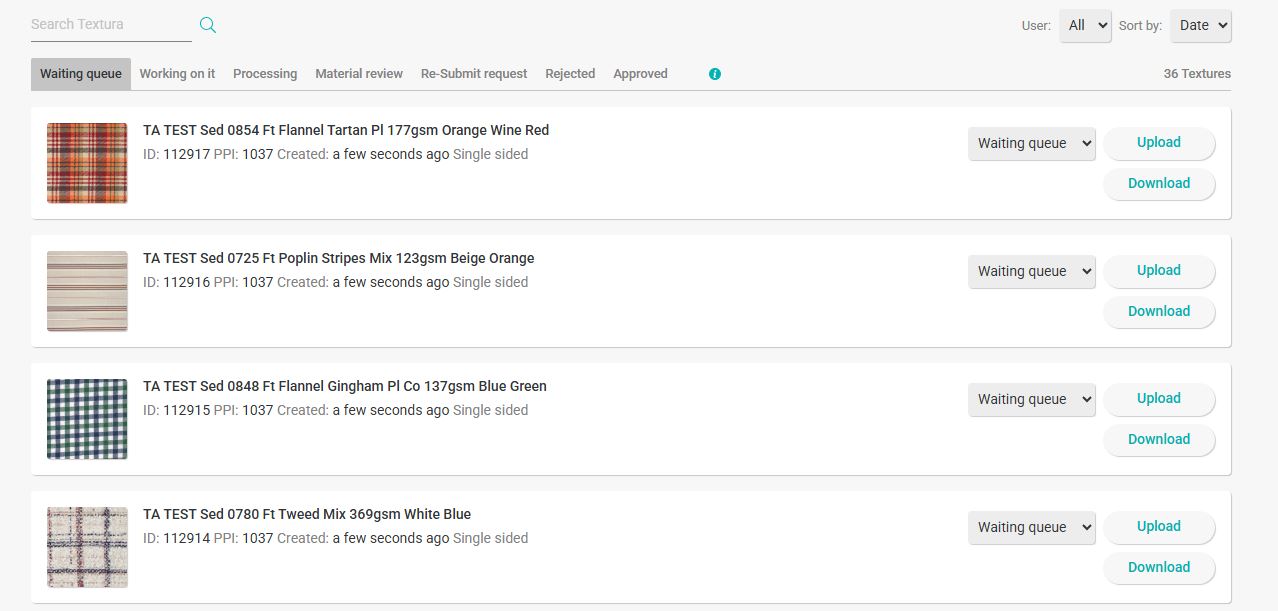
Bulk Upload - Upload multiple files into textura

Save time with Bulk Upload in Textura. Add multiple files at once, review them in one place, and keep your material workflow moving smoothly each day.
Bulk Upload in Textura lets you upload several files at the same time, making the process faster and easier to manage from one place.
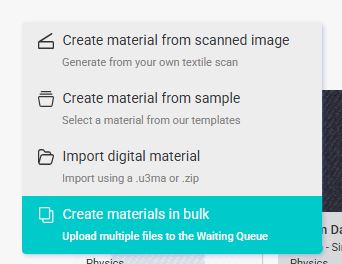
From the main upload dropdown menu, choose "Create materials in bulk"
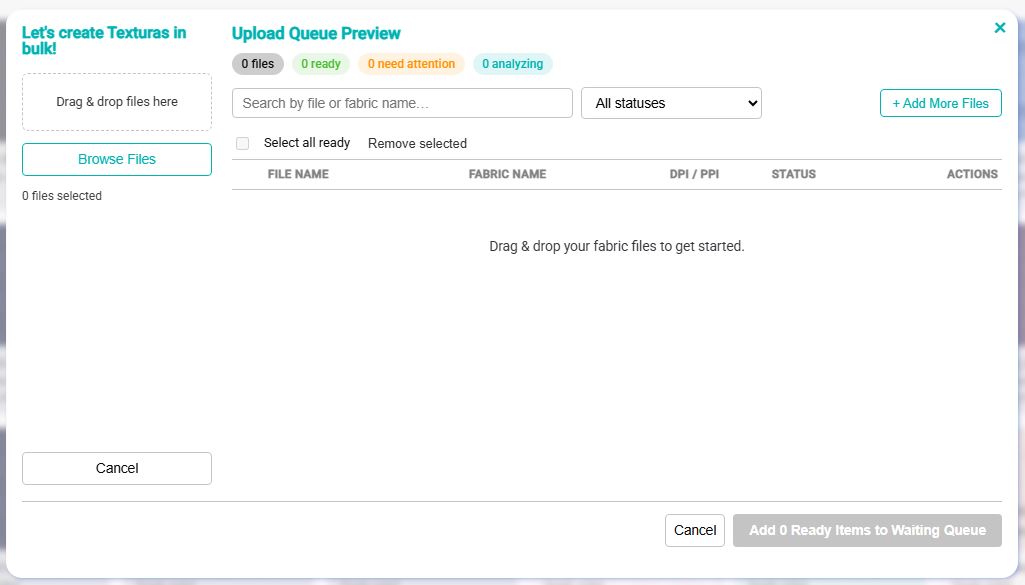
A pop-up window will open, allowing you to select multiple files from your local folders.
After uploading, you can review the files and update their names or resolution if needed.
You will be able to generate physics later from the Enterprise Material View or once the material is ready.
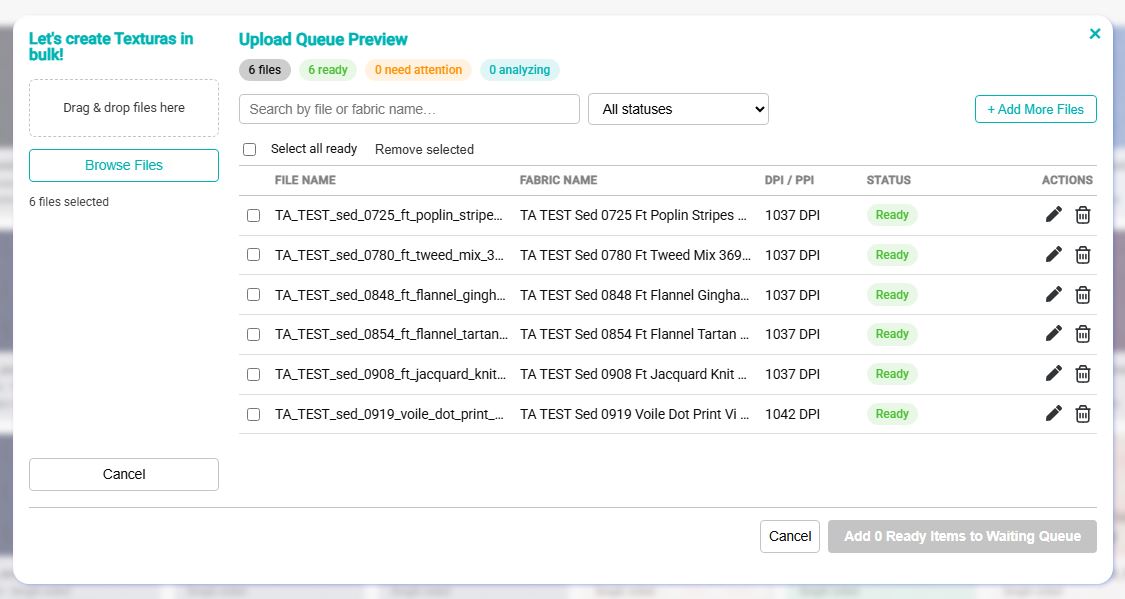
Textura requires uploaded files to have a resolution between 300 and 1200 DPI. If the system detects an unsupported resolution or file type, the file’s status will indicate the issue and highlight that it needs attention. Only files marked Ready can be added to the Waiting Queue; files with errors will remain in the upload list until corrected.
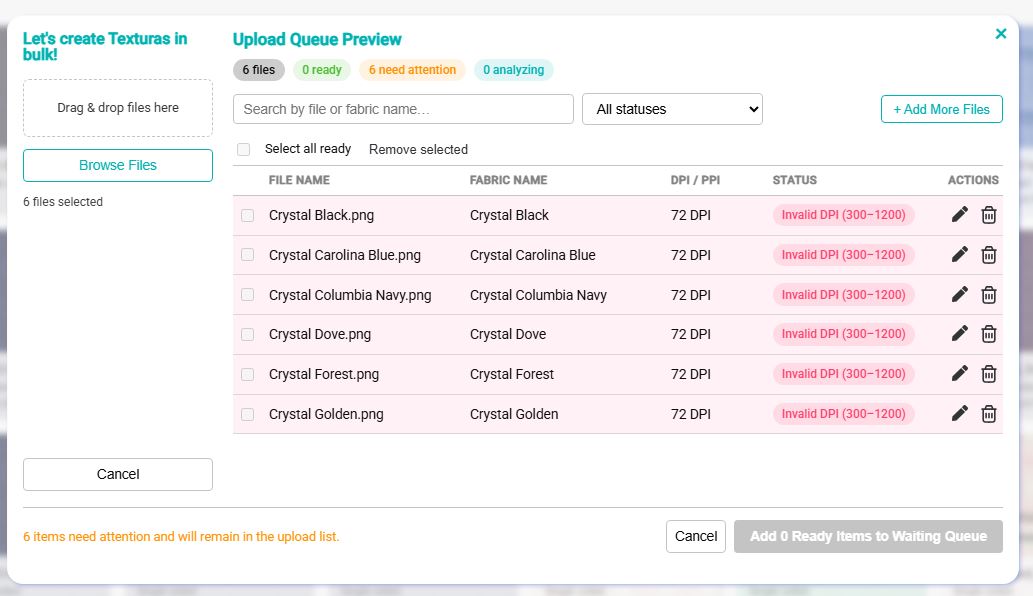
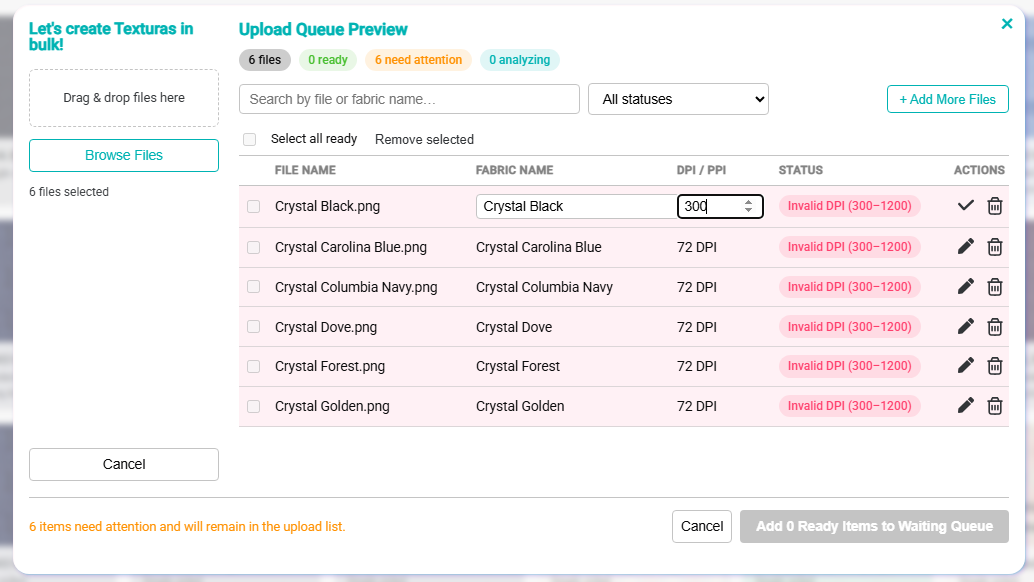
To correct a file’s information, click the pencil icon on the right. Update the required details, then click the checkmark icon to save and approve the changes. Once the file meets the upload requirements, its status will change to Ready.
Once your file is marked Ready in green, select it and add it to the Waiting Queue.
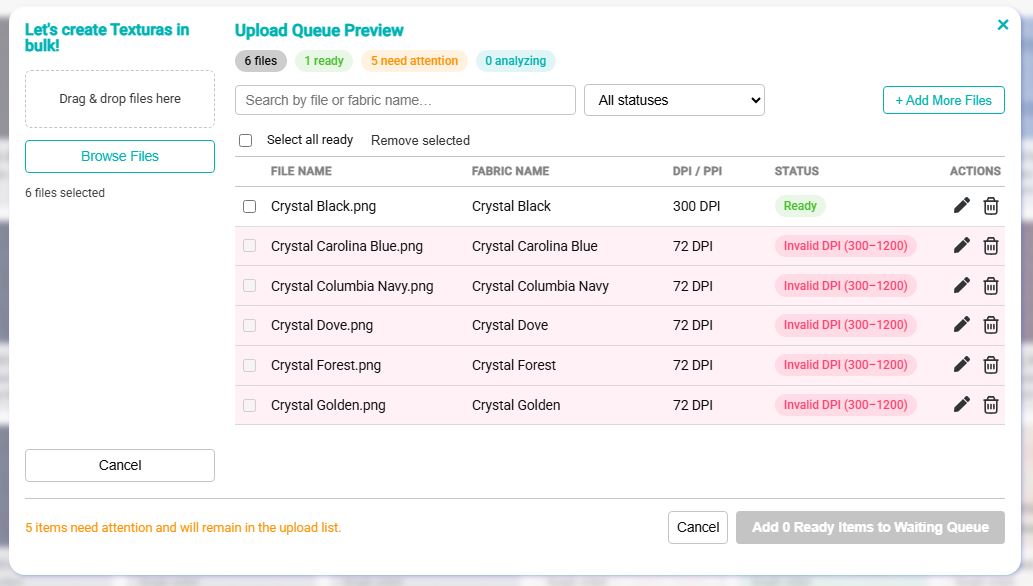
Once you click Add Ready Items, all selected files will be uploaded automatically to the Waiting Queue.