
How to Batch Recolor your Digital Fabrics

Automize your recolor workflow by using a batch recolor automation system in Textura.
Batch Recolor for Digital Fabrics.
Once your fabric is approved and ready, you can automate your recolor workflow by using a batch recolor automation system in Textura.
Enter the Fabric view, scroll down, and on the left side, you will see batch recolor options.
There is a Batch Swatch recolor and a Batch solid recolor. In this article, we will guide you through each step of the process:
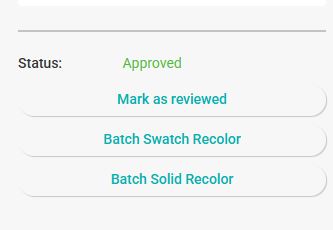
Batch Swatch Recolor
For Batch Swatch Recolor, you will need to prepare a drive folder with all the crop colors that you wish to recolor.
It is a similar process for recoloring from a Swatch for heather fabrics; the swatch crop needs to be smaller than the size of the tile that you are about to recolor.
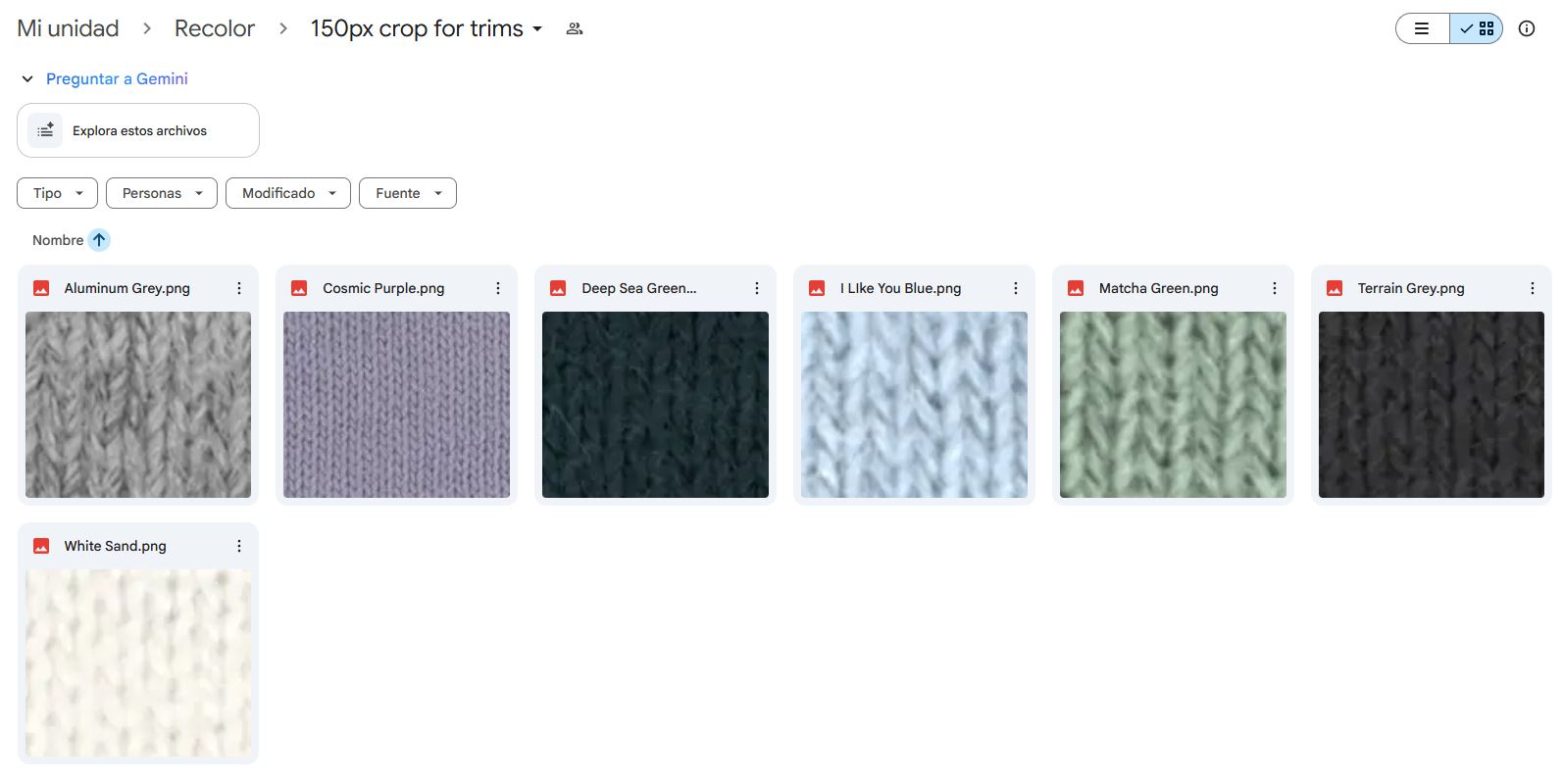
Make sure that your drive folder that contains the swatches is set to public view.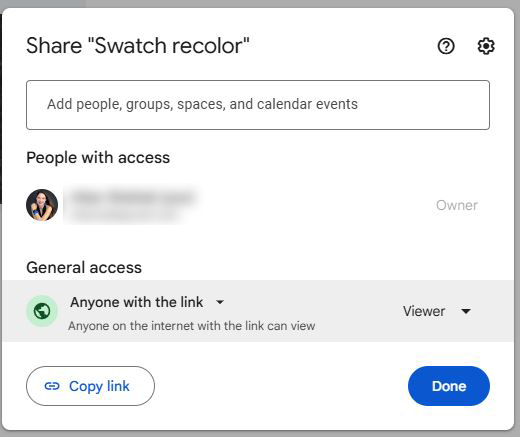
Enter the URL of the drive folder into the batch swatch recolor box, and hit load images.
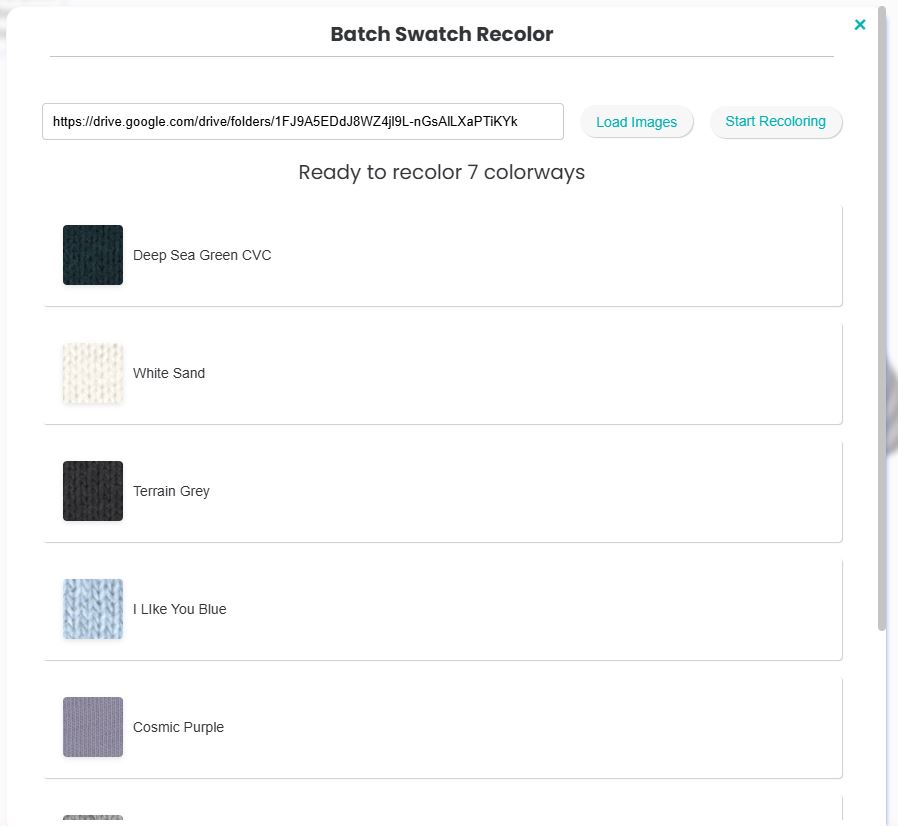
Once all your swatches are loaded, hit Start New Recoloring.
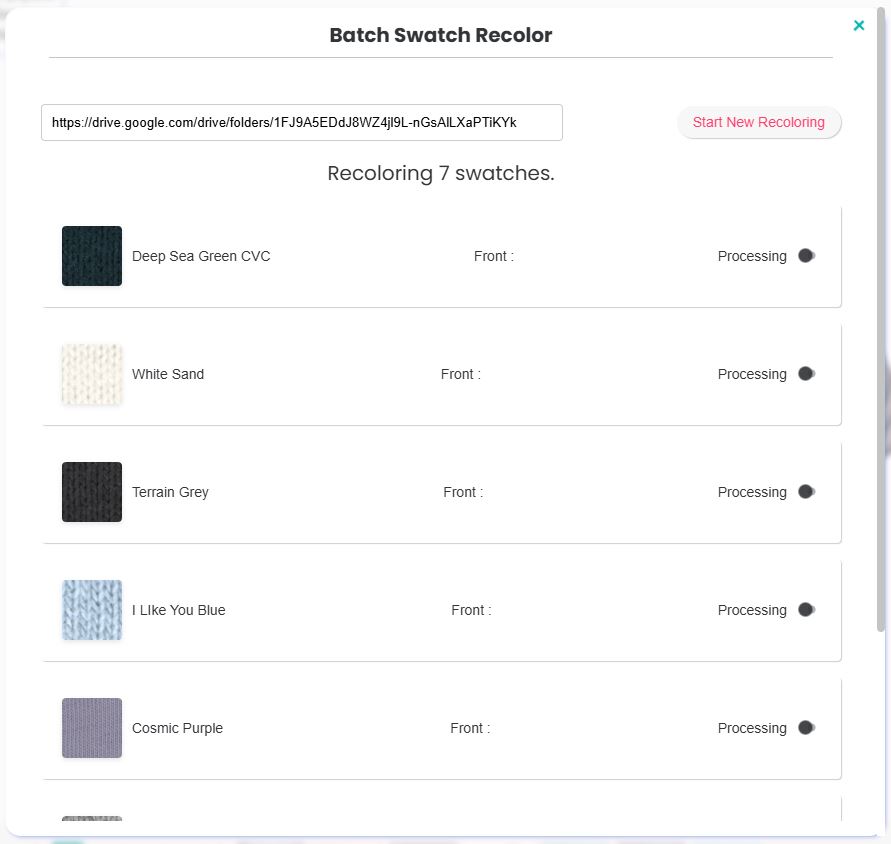
Do not close this window/Tab until you see "Done" for all swatch colors. You can keep working with Textura in another tab.
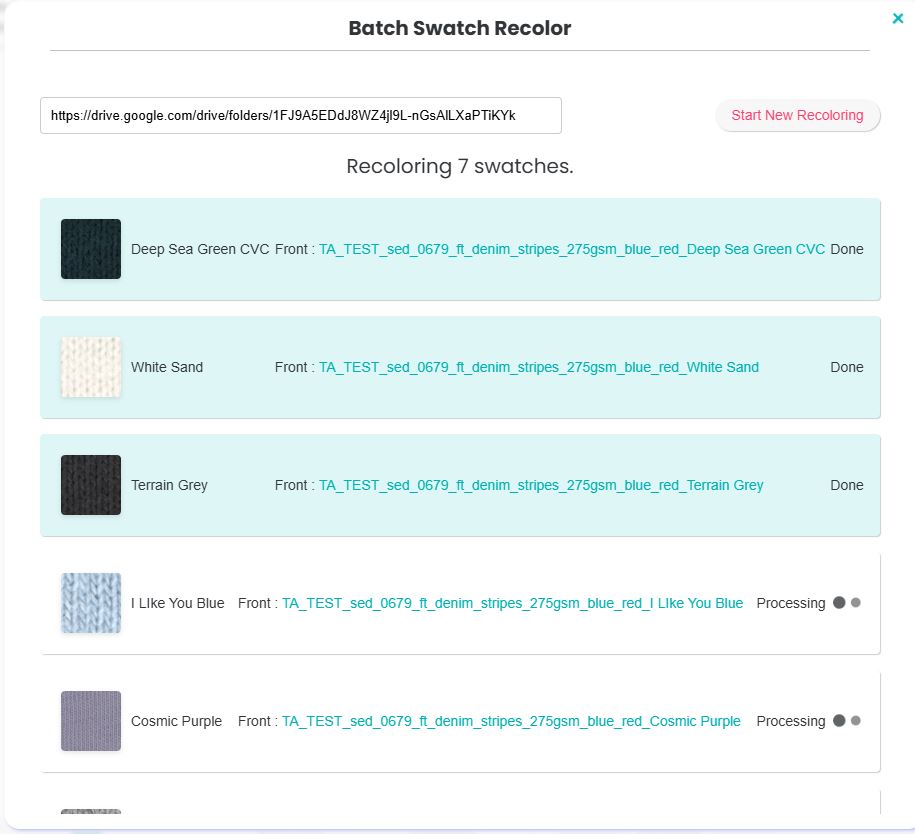
Once processing is ready, all the recolored fabrics from the Swatches will be automatically added to your main fabric as a colorway.
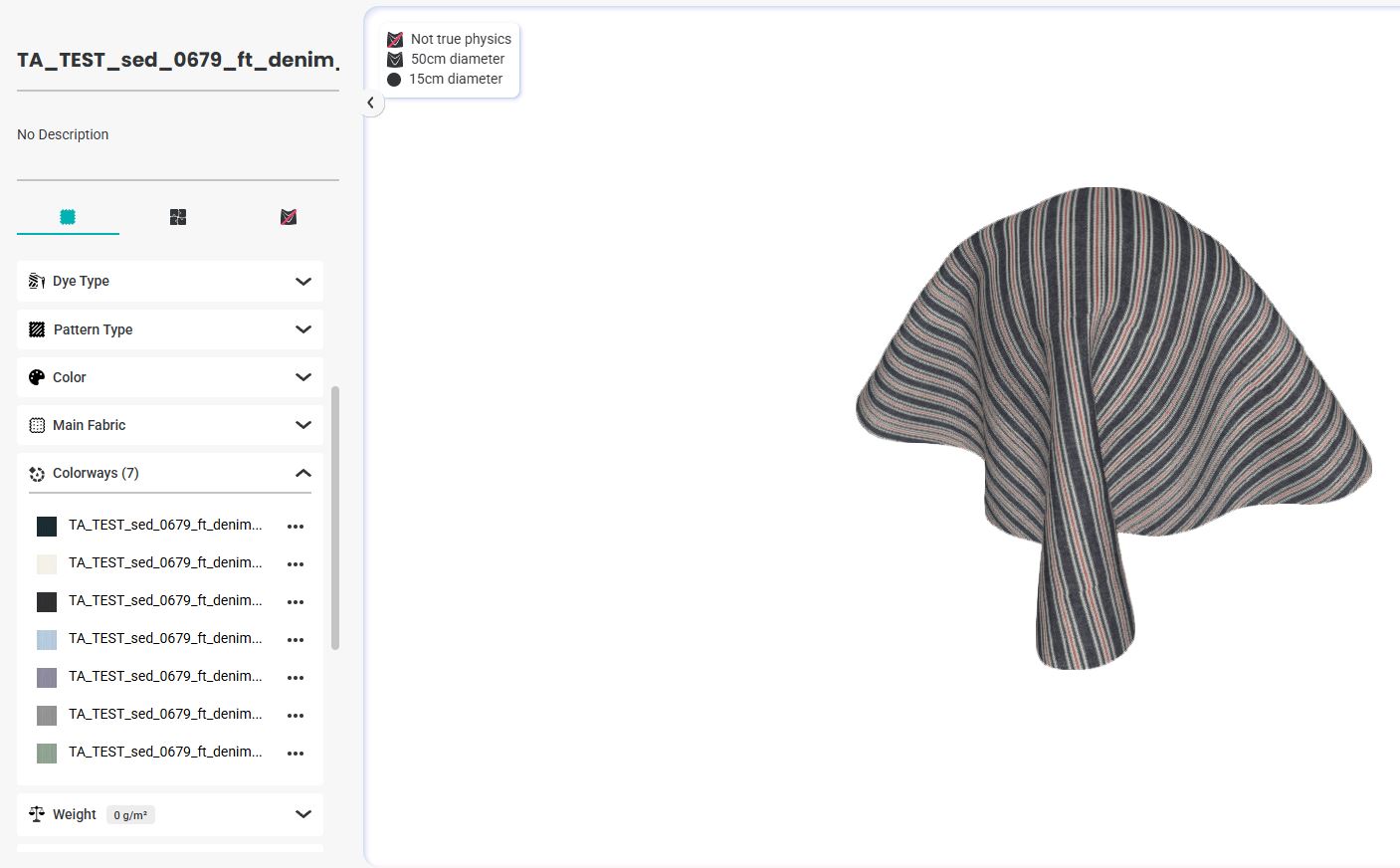
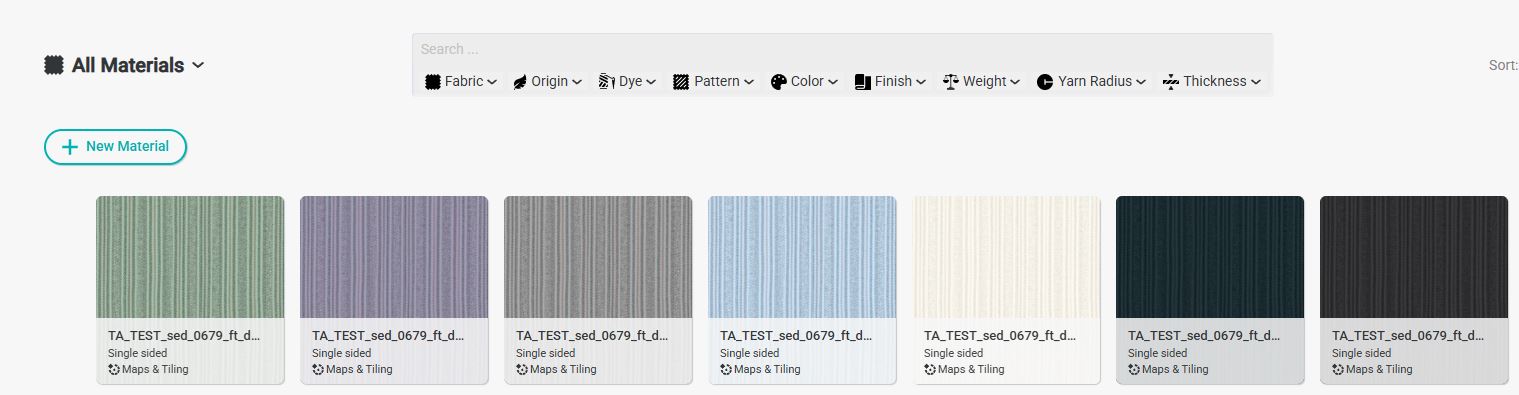
You will be able to access each one of them from the colorway dropdown list:
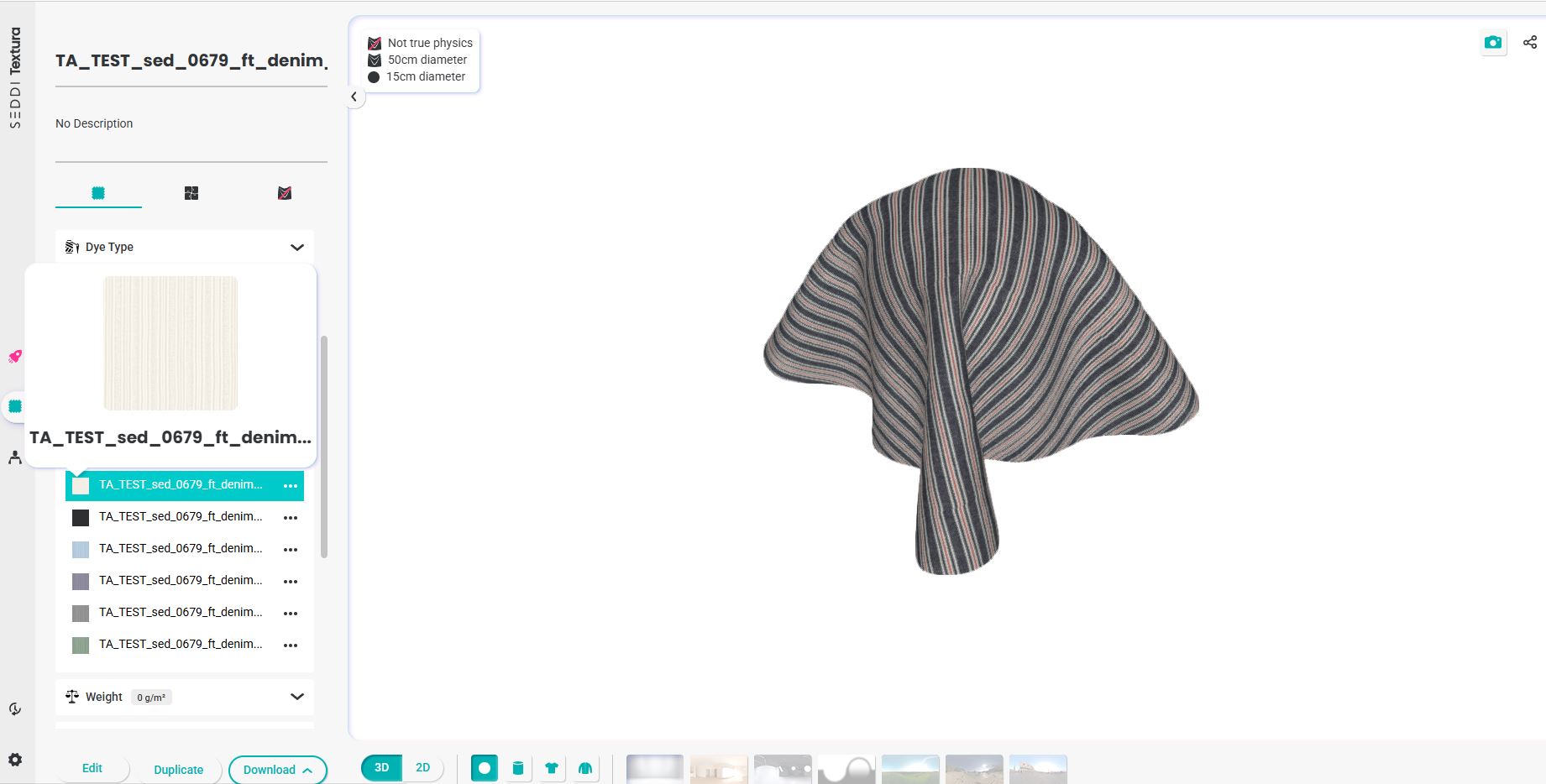
And they will be available for you from the main library, labeled as colorway.
Batch Solid Recolor
For batch solid recolor, you will need to prepare the list of colors plus their HEX code values.
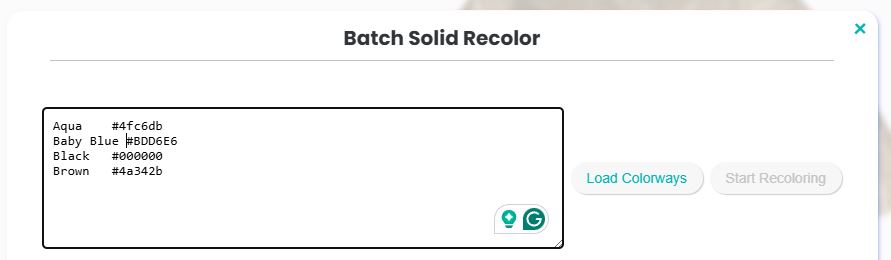
Remove the # from the hex color code
Make sure to leave at least two spaces between the color name and the hex value.
Enter the list and press load colorways. Make sure that all colors match your desired outcome.
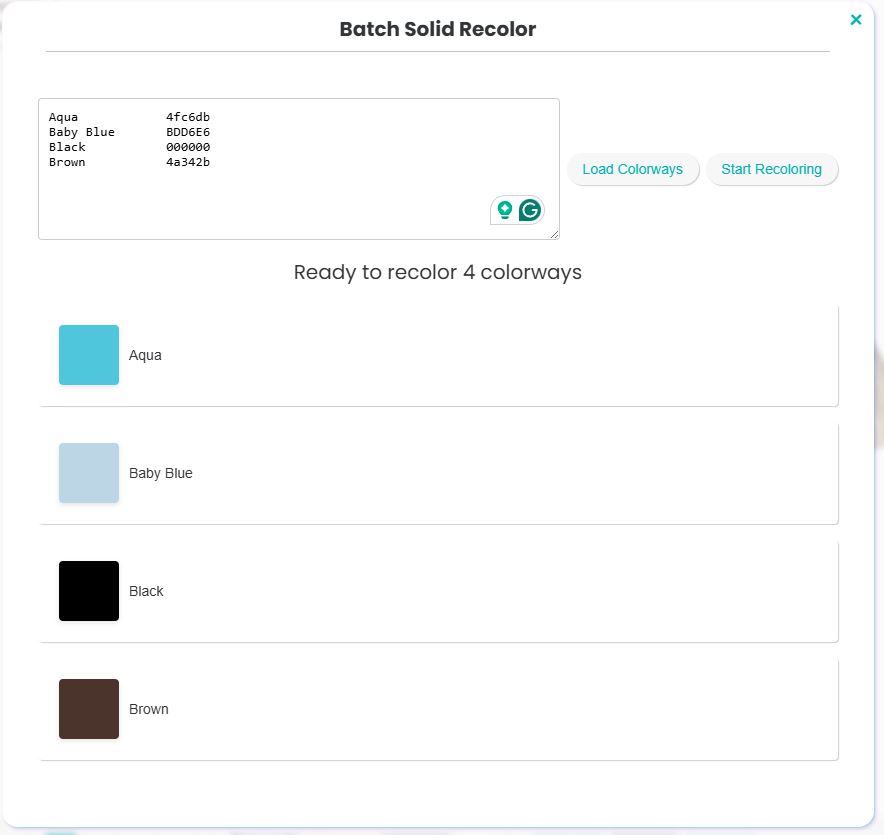
Once ready, press "Start new Recoloring"

Do not close this window/Tab until you see "Done" for all swatch colors. You can keep working with Textura in another tab.

Once processing is ready, all the recolored fabrics from the Swatches will be automatically added to your main fabric as a colorway.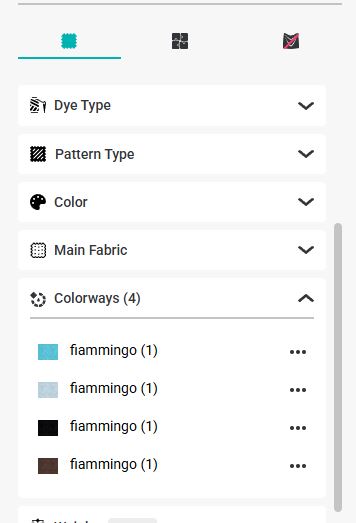
And they will be available for you from the main library, labeled as colorway.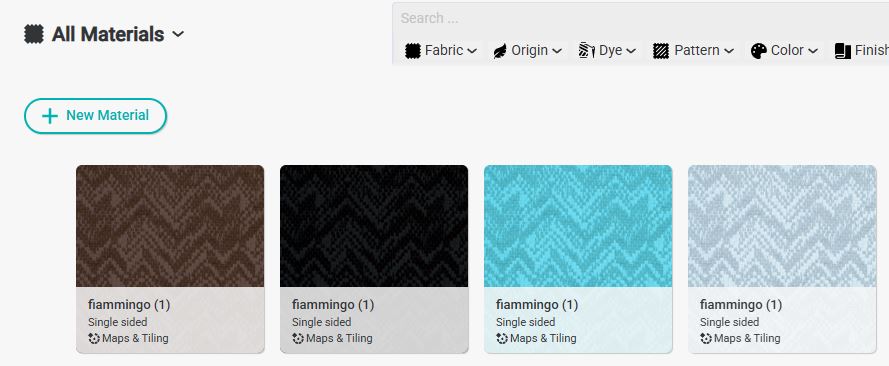
Professional Tip for Recolor Naming Convention:
Save the main fabric that you are about to recolor as:
AA_Color_xyz_name....
Change AA to FR, BK, DB , for Front-Back-Double
change the word "name" to your needs, make sure to keep in the formula _Color_xyz_
The word Color will get automatically replaced by the name of the color that you have entered as the solid color name,
or the name of the color that was saved as the swatch file in the drive.